On this page
Shopify Mobile Optimization: How to Find and Fix Mobile Conversion Leaks
Test your Shopify store on a real phone. Find mobile friction in filters, product pages, forms and checkout, then measure what improves.


Shopify mobile optimization starts with the tasks a shopper needs to complete on a phone: find a product, check the variant, understand delivery, and pay. A desktop review can miss a filter that loses its selection, a sticky button that covers the size guide, or a keyboard that hides the next field.
Find the first task that fails on mobile before redesigning the whole store.
Start with mobile behavior, not assumptions
Before changing the theme, compare mobile and desktop behavior across the full journey. Look at:
- Landing pages by acquisition source
- Product-list and collection engagement
- Search usage and zero-result queries
- Product views and add-to-cart rate
- Cart starts and checkout starts
- Checkout completion
- Revenue per session
- Support questions and returns
Segment by device, product category, traffic source, and new versus returning shoppers. Match acquisition source and landing page when comparing devices. Mobile ad traffic and desktop returning customers are not a fair comparison. For example, mobile traffic may convert well for low-consideration products but struggle for products that require comparison, compatibility, or detailed proof. That points to a different opportunity from a general “make the site faster” recommendation.
Run a mobile shopping test on a real phone
Start from one of your busiest mobile landing pages, preferably the same page used in an ad. Then follow this route:
- Open the menu and find a relevant collection.
- Apply a filter, open a product, and go back. Check whether the filter and scroll position remain.
- Inspect product images, choose a variant, and look for delivery and returns information.
- Add the item to the cart and change its quantity.
- Begin checkout, use address autofill, and check the keyboard and error messages. Stop before placing a live order unless you are running an approved test purchase.
Record the device, browser, page, and exact failed task. “The model filter clears after going back” is a fixable finding; “mobile UX is poor” is not.
Fix the first mobile impression
A mobile shopper should understand what the store offers and what to do next without fighting the layout. Review:
- Whether the main value proposition is visible quickly
- Whether promotional banners push product discovery too far down
- Whether the primary navigation is understandable
- Whether text and controls are readable without zooming
- Whether intrusive popups interrupt the first meaningful action
The first screen does not need to explain everything. It needs to make the next step obvious.
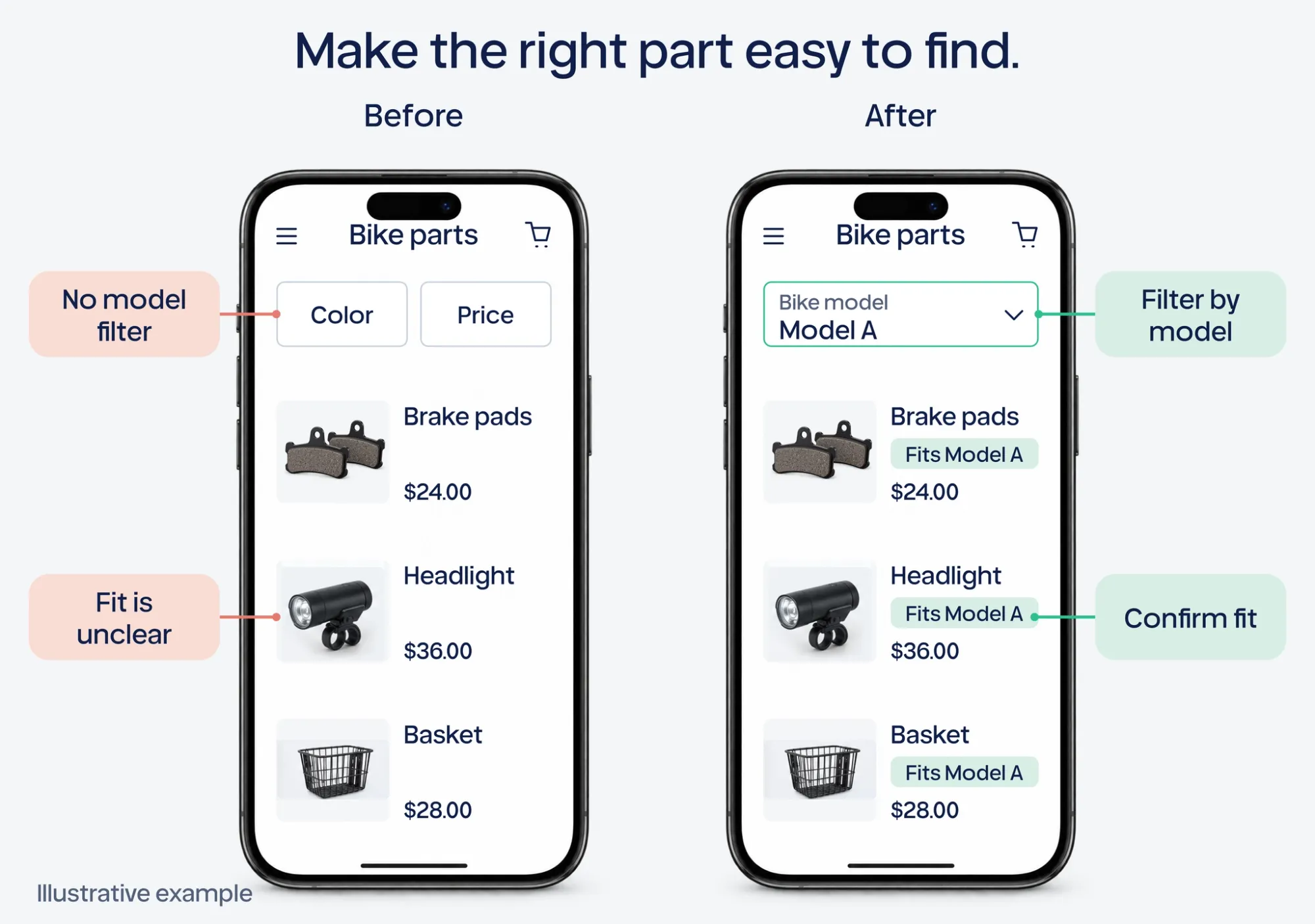
Make product discovery easier
Navigation problems become more visible on mobile because there is less room to display context. Check whether shoppers can:
- Open and understand the menu
- Return to a relevant collection
- Filter without losing their place
- Search using the words they actually use
- See why a product belongs in a category
- Compare products without excessive back and forth
For stores with many products or technical variations, mobile filters and search labels can matter more than visual polish. A shopper who cannot narrow the catalog quickly may leave before viewing the right product.
Make the product page answer the decision
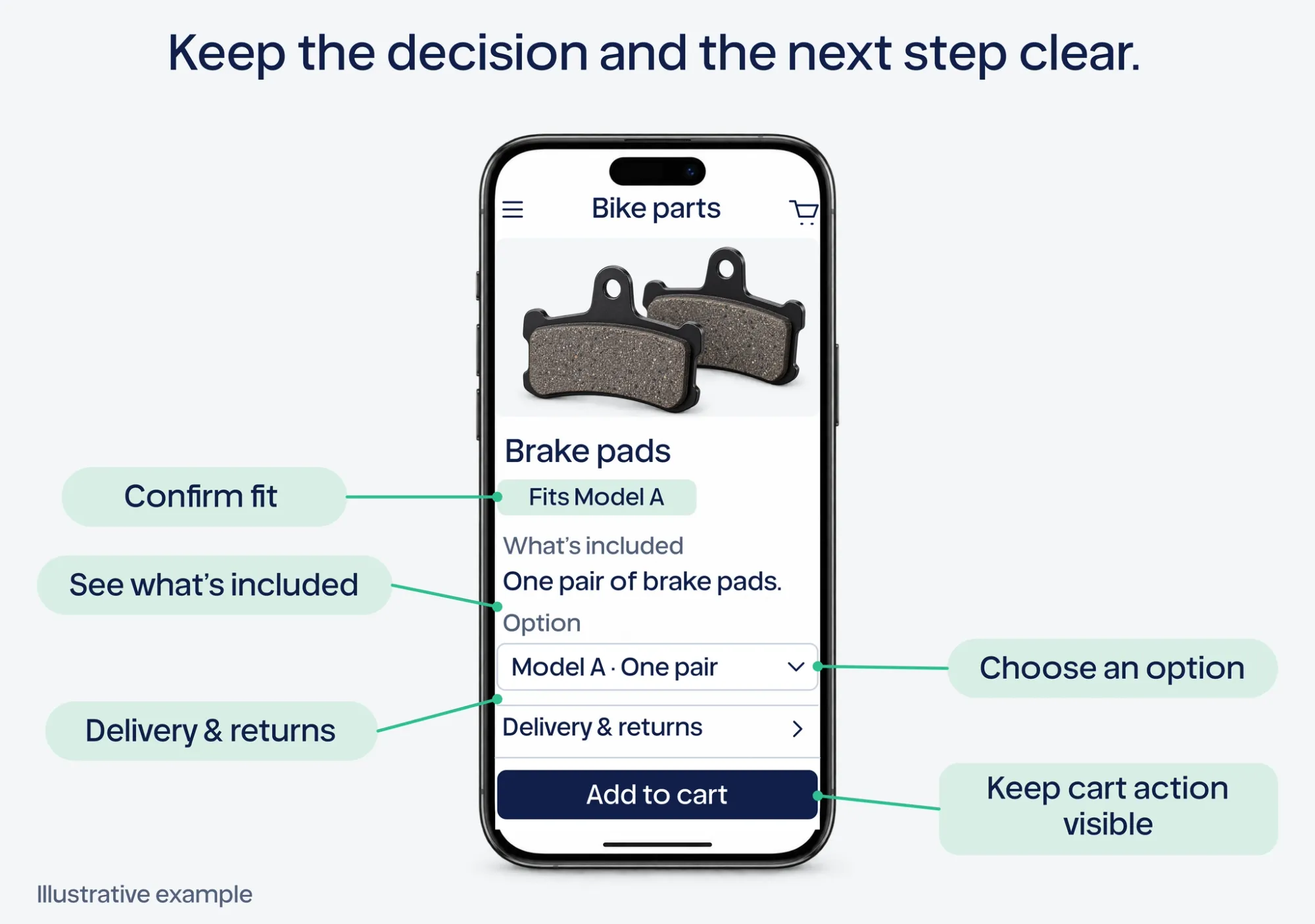
Mobile product pages need to support the shopper's decision in a compact sequence. The page should make the following clear:
- What the product is
- Who it is for
- Why it is worth the price
- Which variant or size to choose
- Whether it is compatible or available
- When it will arrive
- What happens if it is not right
Product media should help rather than slow the decision. Images should load efficiently, show useful details, and be easy to navigate. Long descriptions can be structured with clear sections so shoppers can scan the information that matters to them.
Keep important actions available
A mobile shopper should not have to search through a long page to find the next action. Depending on the product and theme, useful patterns may include:
- A clear add-to-cart area
- A sticky action that does not cover key information
- A visible variant selector
- A cart summary after adding a product
- A simple path back to product discovery
Sticky elements are not automatically improvements. Test whether they help shoppers act or create visual competition and accidental taps.
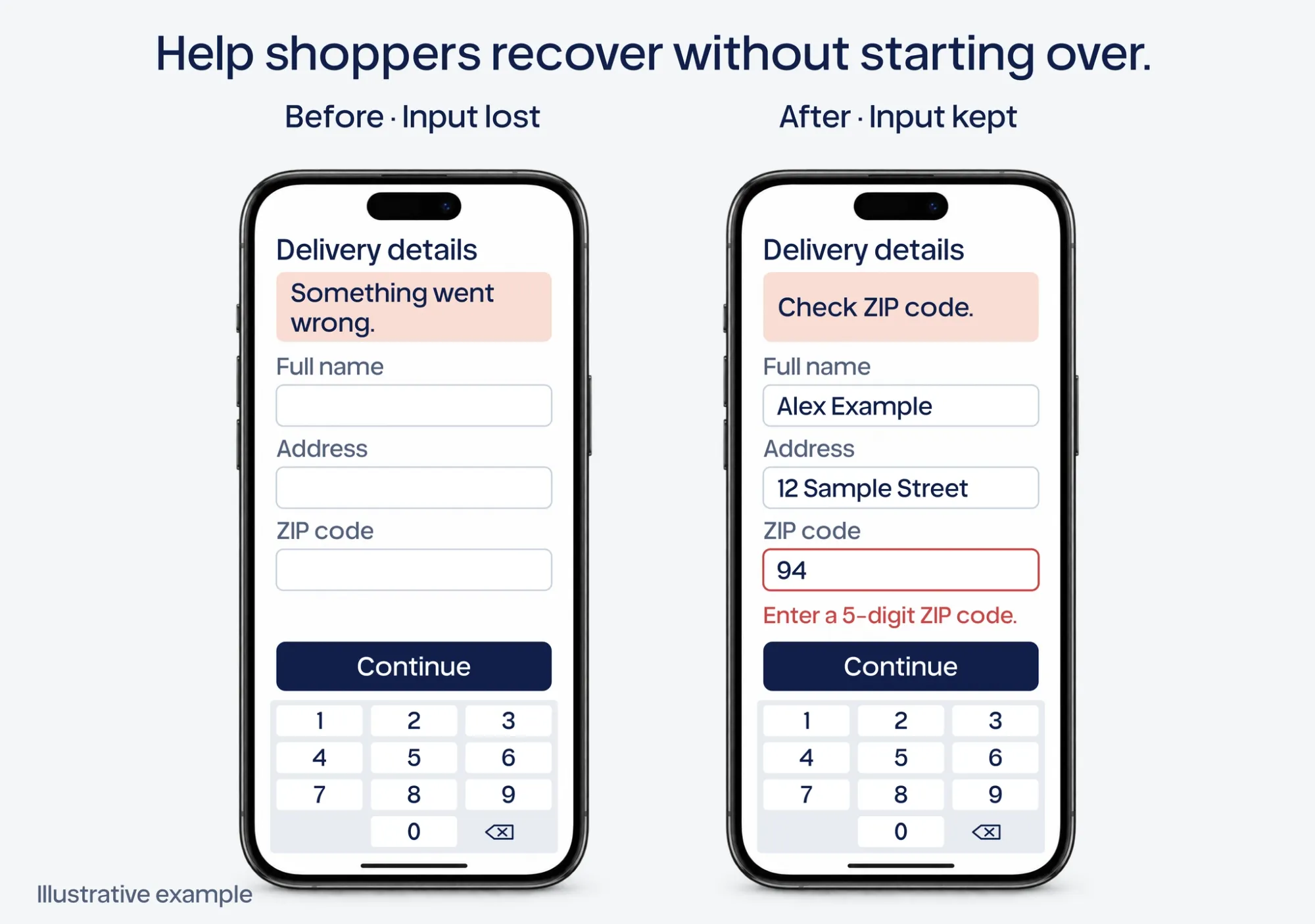
Reduce mobile form effort
Every field creates effort. This matters even more when shoppers are using a phone. Review:
- Address input and autofill behavior
- Keyboard type for each field
- Error messages and field validation
- Guest checkout and account requirements
- Order-summary visibility
- Payment options and handoff continuity
A form should help shoppers recover from errors. A vague message such as “Something went wrong” gives them no reason to continue.
Treat perceived speed as part of the experience
Technical speed matters, but the commercial question is how performance changes the shopper journey. Investigate:
- Which pages are slow for real mobile shoppers
- Which apps or scripts affect the path to product and checkout
- Whether large images delay the first useful interaction
- Whether the page appears ready before it is actually usable
- Whether speed problems affect specific templates or devices
Use Shopify’s web performance reports and a page-level diagnostic such as PageSpeed Insights to locate the slow interaction. Real-user reports and a lab test answer different questions. Re-test the affected template after a change, then check whether the shopping task and business metric improved.
Prioritize mobile opportunities by impact
A long mobile audit can create more work than clarity. Prioritize opportunities using the store's goal. If the goal is more completed purchases, an opportunity that affects the product-to-cart transition may be more valuable than a minor home-page spacing issue. A useful opportunity description includes:
- The mobile segment affected
- The point in the journey where behavior changes
- The evidence supporting the observation
- The likely business impact
- The smallest practical change
- The metric that will show whether it worked
This turns “mobile optimization” into a decision about what to fix first.
Measure beyond mobile conversion rate
Conversion rate is important, but it is not the only signal. Also consider:
- Product engagement
- Search and filter usage
- Add-to-cart rate
- Checkout start rate
- Error frequency
- Revenue per mobile session
- Support contacts
- Refunds and returns
A change that raises add-to-cart rate but increases returns may not be a genuine improvement. A change that slightly improves conversion while reducing customer confusion may create durable value.
Mobile optimization should be continuous
Mobile behavior changes as products, traffic sources, themes, apps, and customer expectations change. A one-time checklist becomes outdated quickly. A more useful loop is:
- Observe mobile behavior.
- Find the most important friction.
- Understand the merchant's goal and constraints.
- Prioritize one opportunity.
- Make and measure a change.
- Use the outcome to choose the next improvement.
Gentoo can help turn an unclear mobile-conversion concern into a goal the merchant confirms, then carry that goal and earlier work across weeks. When worthwhile work needs attention, it proactively reaches out through iMessage or email with an investigated proposal.
You review the solution instead of having to direct every step in chat. Gentoo executes supported work after approval and uses the business result, including revenue or orders where relevant, to choose the next action.
If the failure is on a product page, use the product-page optimization guide. If it starts after checkout begins, use the checkout friction guide.
Find your next Shopify growth opportunity. Run Gentoo’s Quick Analyzer to review the top three opportunities it finds in your store and the reasons to consider them.